Getting Started with Your Nova Hub Account
Welcome aboard! Your Nova Hub account is where you'll see your calls, messages, and appointments. Setting it up takes about two minutes.
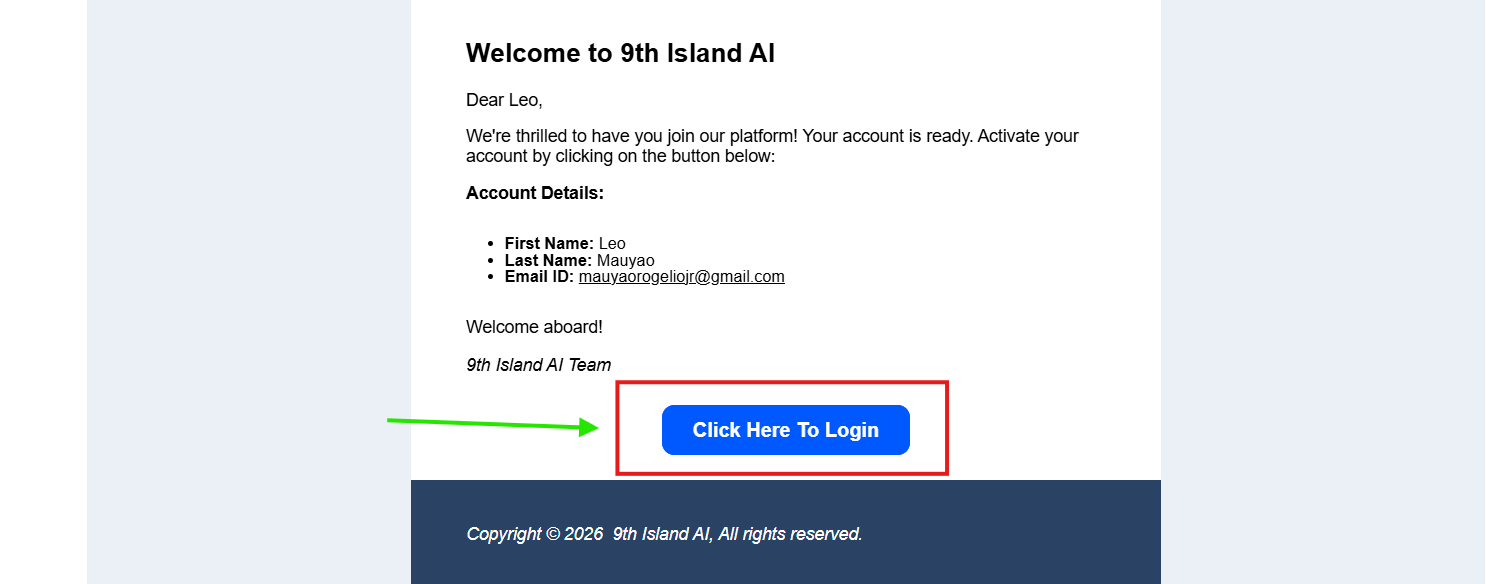
1Find your invite email
Look for an email with the subject:
Activate Your Account | 9th Island AI
It comes from a sender named noreply, and inside it says “Welcome to 9th Island AI” with a blue Click Here To Login button.
Can’t find it? Type “Activate Your Account” or “9th Island” into your inbox search bar, and check your Spam and Promotions folders.

2Activate your account
Click the Click Here To Login button in the email. Your browser will open the login page.

3Create your password
Set a password for your account. Use at least 8 characters, including a capital letter and a number. Your username is your email address (the one this invite was sent to).
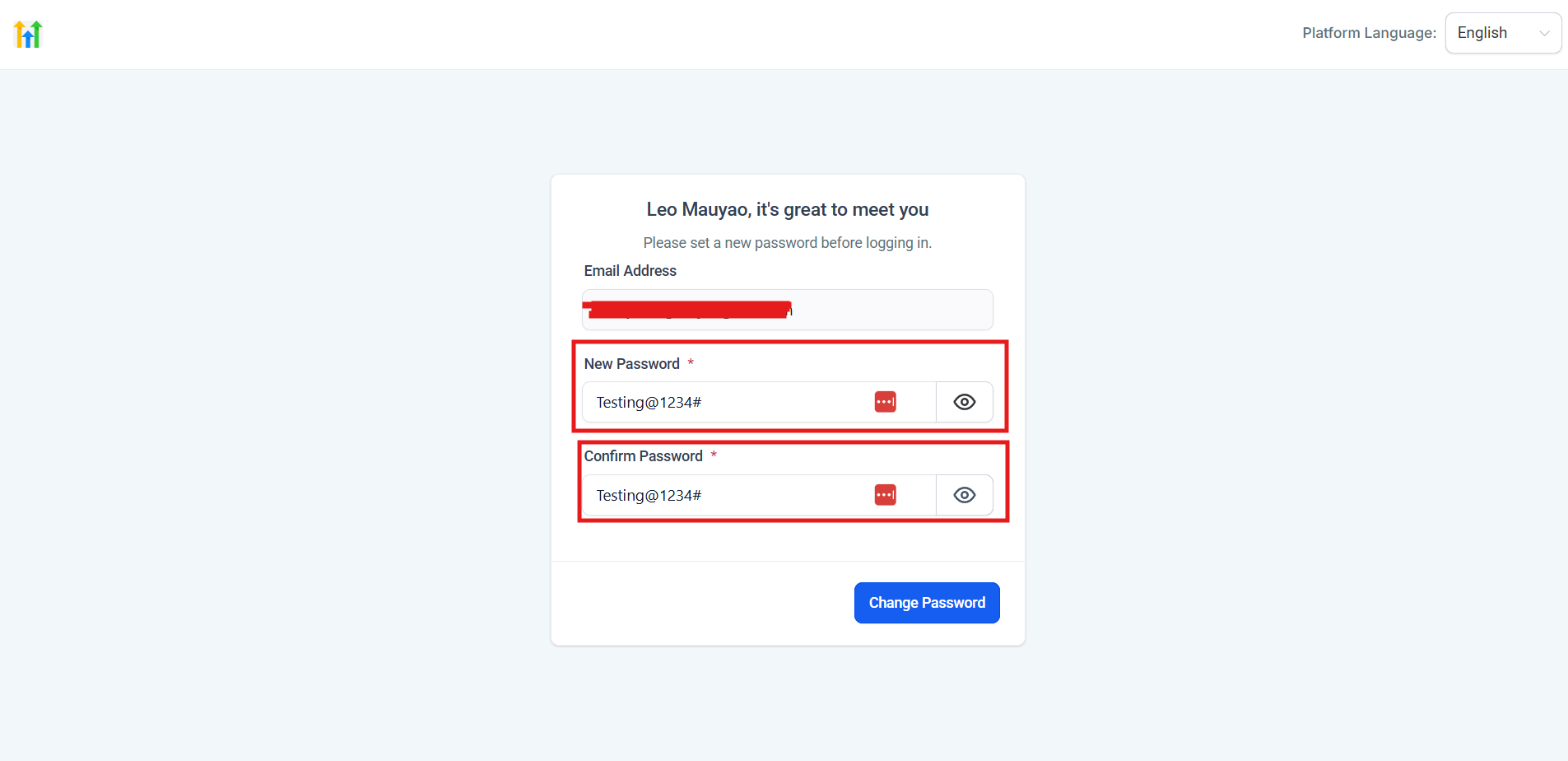
Don’t forget to save your password! When your browser offers to save it, click Save — or write it down somewhere safe.
4Sign in
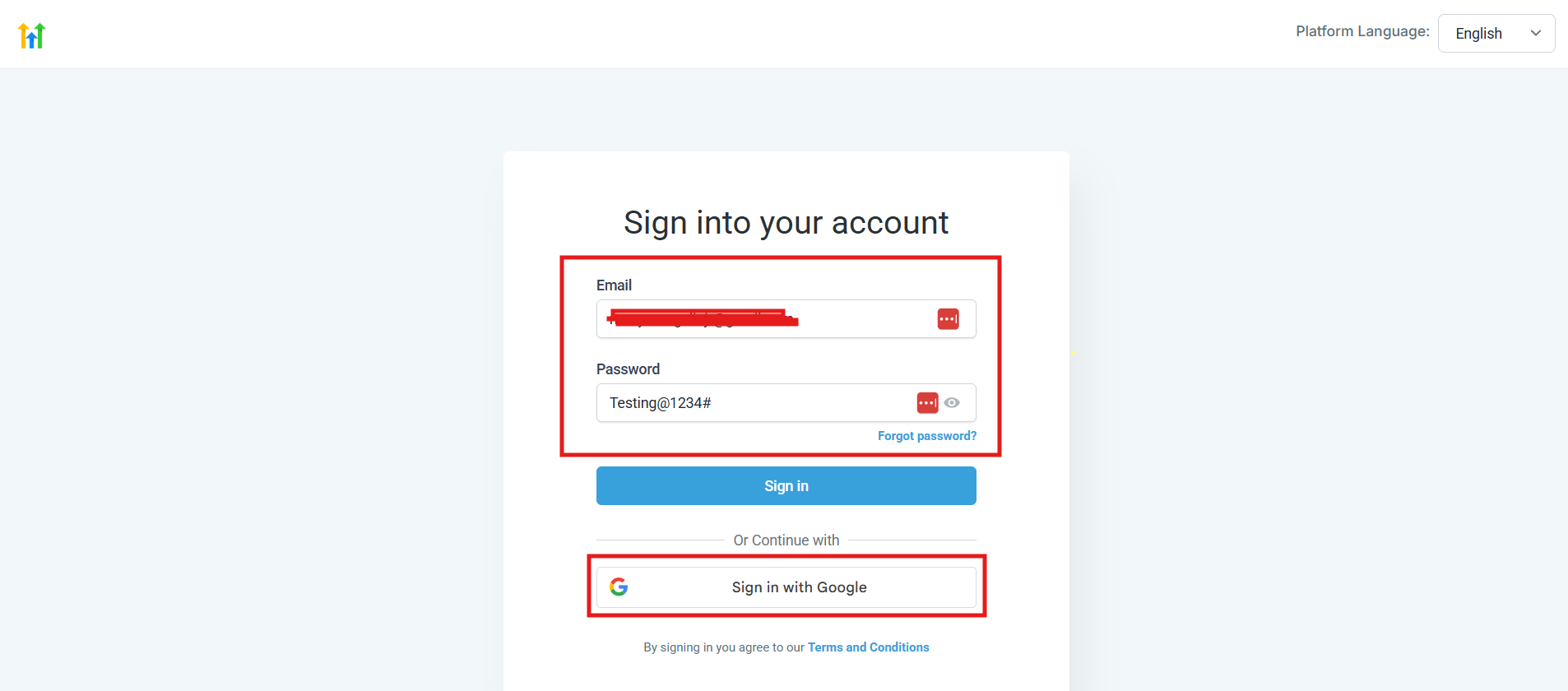
After creating your password, a new page opens: “Sign into your account”. Enter your email and the password you just created, then click Sign in.
Use the email + password fields — not the “Sign in with Google” button. Your email and password work for everyone.
5Enter your security code
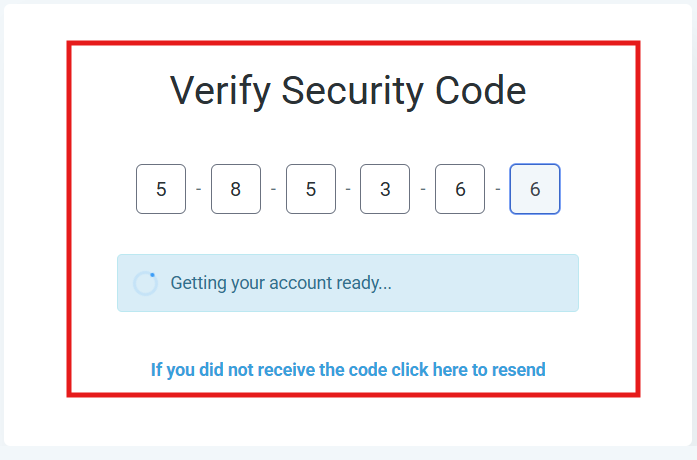
After you click Sign in, a “Verify Security Code” screen appears — this is a one-time security check.
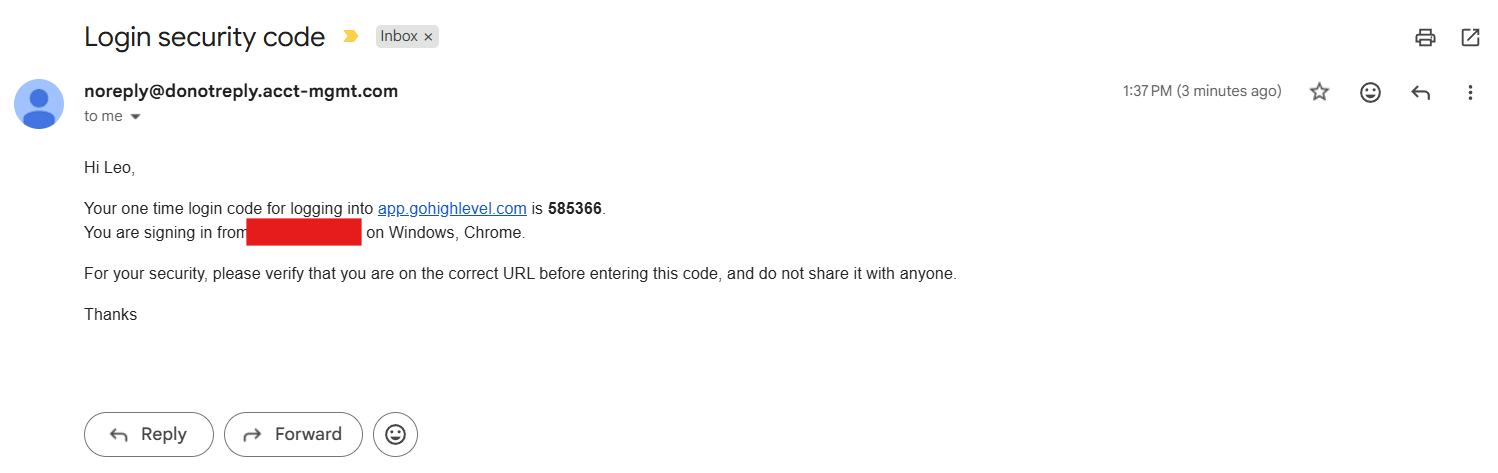
- Go back to your inbox and look for a new email with the subject “Login security code” (sender: noreply@donotreply.acct-mgmt.com)
- It contains a 6-digit code
- Type the code into the boxes on the screen — it signs you in automatically
No code after a minute? Check Spam, or click “If you did not receive the code click here to resend” on the verify screen.

You're in! 🎉
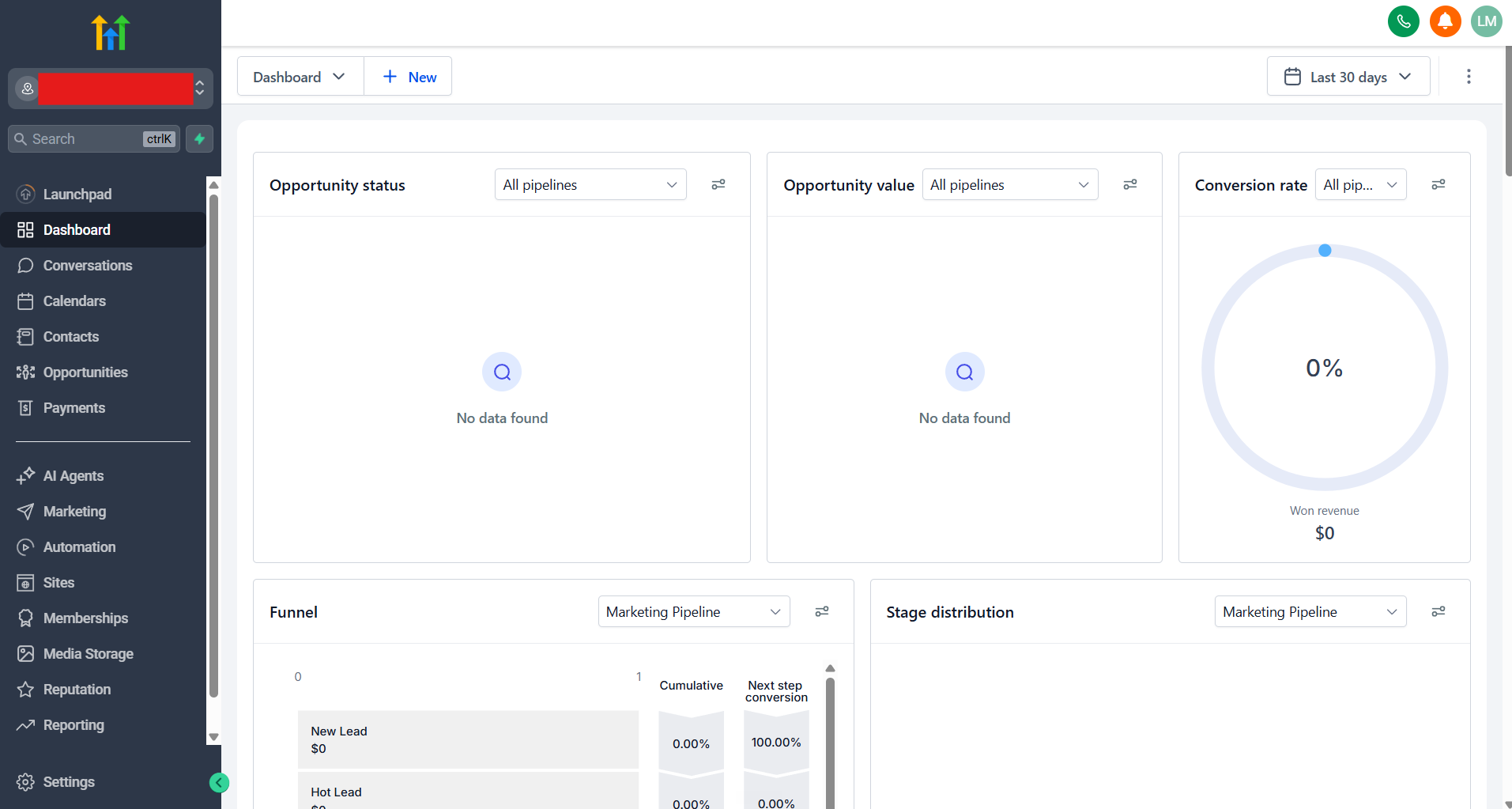
Once the code is verified, you’ll land on your dashboard. The menu on the left is where everything lives — Conversations (calls and messages), Calendars (appointments), and Contacts (your patients/customers).
Don’t worry if the dashboard looks empty at first — it fills up as calls and appointments start flowing in.
6Bookmark your login page
You can log in anytime at:
app.gohighlevel.com
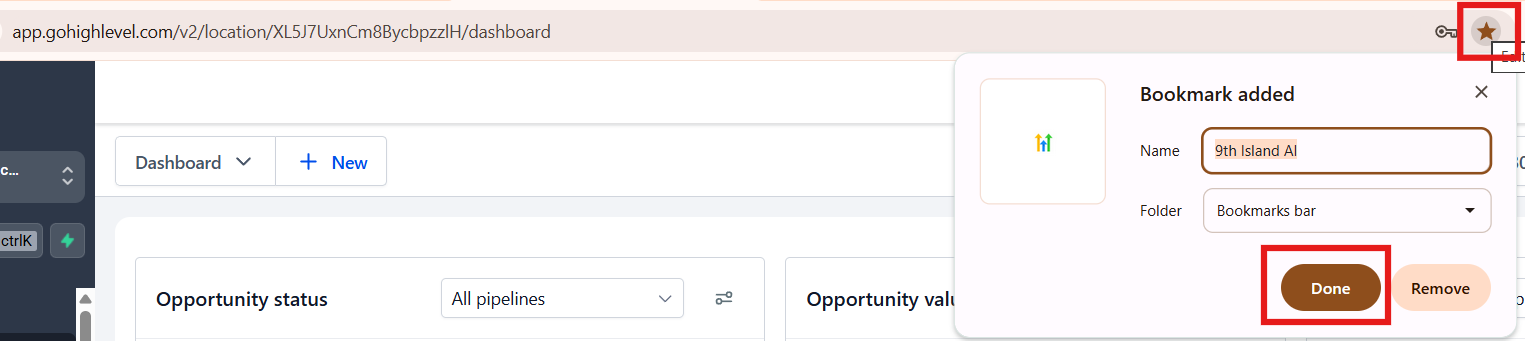
Bookmark it — this is your Nova Hub home on a computer. While on the page, click the star icon at the right end of the address bar (or press Ctrl+D on Windows / Cmd+D on Mac), then click Done.
Troubleshooting
The login link expired or nothing happens when I click it.
Go to app.gohighlevel.com, click Forgot Password, enter your email, and follow the reset link. That sets your password the same way — no new invite needed.
I never got the invite email.
Check Spam/Promotions first. Still nothing? Email us at nova@9thislandai.com and we’ll resend it.
My staff needs access too.
Each team member gets their own personal invite — just send us their name and email. Don’t share one login between people.
Next up
Ready for the next step? Connect your calendar →